- Why WordPress Is Slow by Default
- Dynamic Content vs Static Content
- What Is WordPress Caching?
- How Page Cache Reduces TTFB
- Types of WordPress Caching (Explained Simply)
- 1. Page Cache (Most Important)
- 2. Object Cache
- 3. Browser Cache
- 4. CDN Cache
- Why Caching Alone Isn’t Always Enough
- Common Caching Mistakes
- A Real-World Example
- The Simple Way to Think About Caching
- Final Thoughts
If you want to speed up WordPress, sooner or later you’ll hear the same advice:
“Use caching.”
But what does that actually mean?
Most guides jump straight into plugin settings. They tell you what boxes to tick, but they don’t explain what’s happening behind the scenes.
In this guide, we’ll slow things down and explain how WordPress caching works in plain English. No technical overload. Just clear logic you can actually understand.
Because once you understand caching, it becomes much easier to reduce TTFB, lower server response time, and make WordPress faster the right way.
Why WordPress Is Slow by Default

WordPress is dynamic.
That means every time someone visits a page, WordPress builds it in real time.
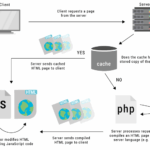
Here’s what happens during a normal request:
-
A visitor enters your URL.
-
The browser sends a request to your server.
-
WordPress runs PHP files.
-
It connects to the MySQL database.
-
It retrieves posts, settings, menus, widgets.
-
It generates HTML.
-
The server sends the finished page back to the visitor.
This process repeats for every single visit.
Even if the page hasn’t changed.
Even if it’s just your homepage.
That repeated work increases server load and slows down response time. This is one of the main reasons WordPress can feel slow without optimization.
Dynamic Content vs Static Content

To understand WordPress page cache, you need to understand one simple idea:
Dynamic content is generated every time.
Static content is already prepared.
By default, WordPress serves dynamic content. It rebuilds the page on every request.
Caching converts that dynamic page into a static HTML file.
And static files are much faster to serve.
Instead of:
Browser → PHP → Database → Build Page → Send HTML
You get:
Browser → Server → Send Ready HTML
That’s a huge difference.
What Is WordPress Caching?
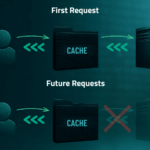
WordPress caching means saving a pre-built version of a page and delivering that instead of rebuilding it every time.
Think of it like cooking.
Without caching, you cook the same meal from scratch for every customer.
With caching, you cook once and serve the prepared meal instantly.
Less work for the server.
Faster delivery for the visitor.
That’s how caching helps speed up WordPress.
How Page Cache Reduces TTFB
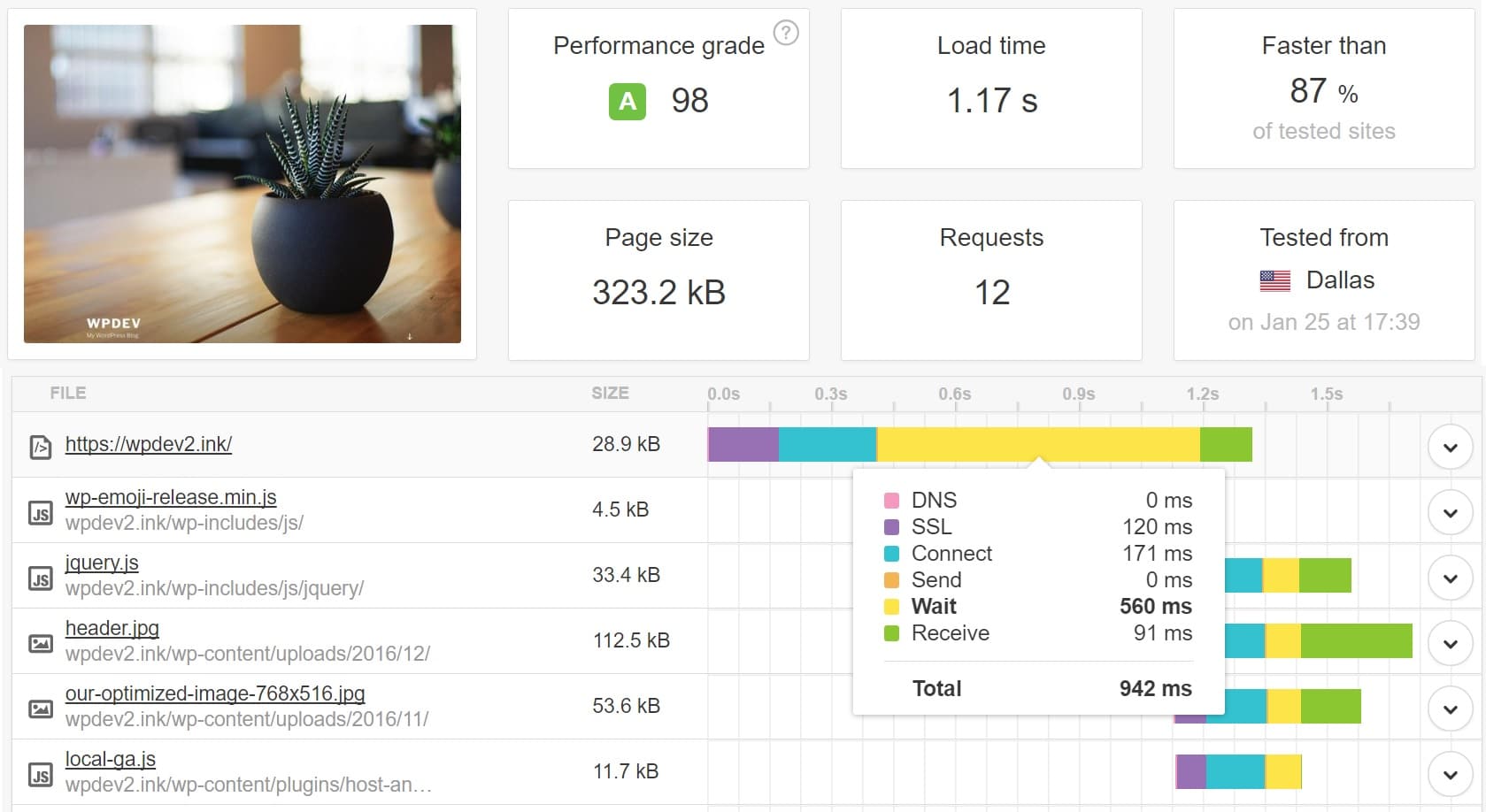
TTFB (Time to First Byte) measures how quickly your server responds to a request.
When WordPress has to run PHP and query the database, response time increases.
When a page cache is active:
-
No heavy PHP execution
-
Fewer database queries
-
Lower CPU usage
-
Faster server response time
This directly reduces TTFB.
That’s why page caching is often the biggest performance improvement you can make.
Types of WordPress Caching (Explained Simply)
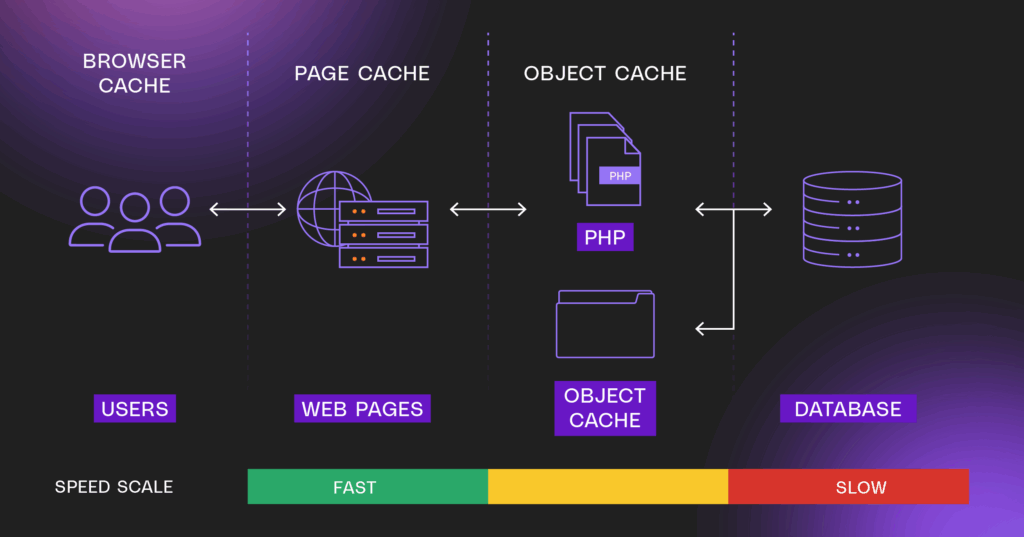
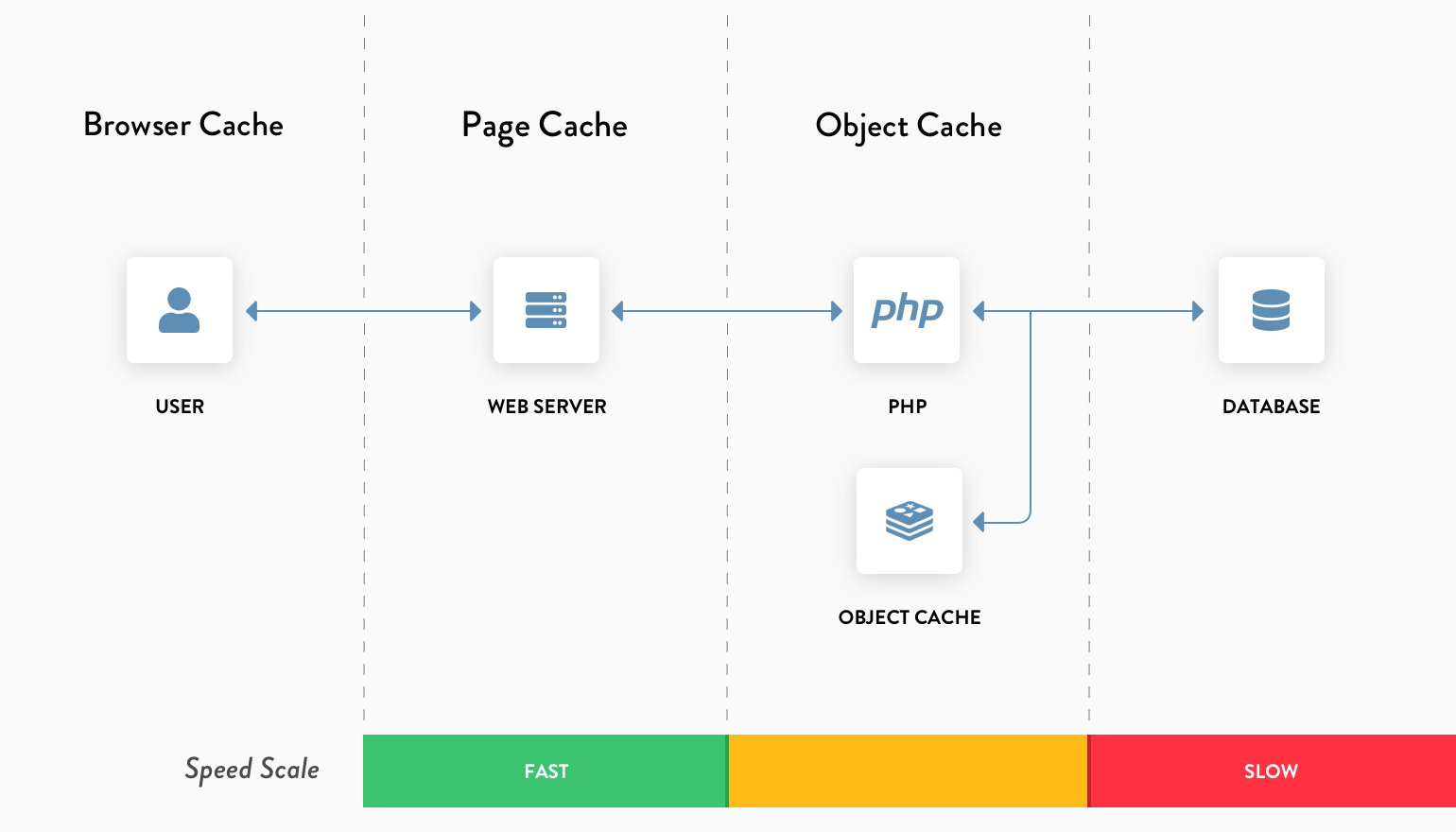
There are different caching layers. Each one plays a different role.
Let’s break them down clearly.
1. Page Cache (Most Important)
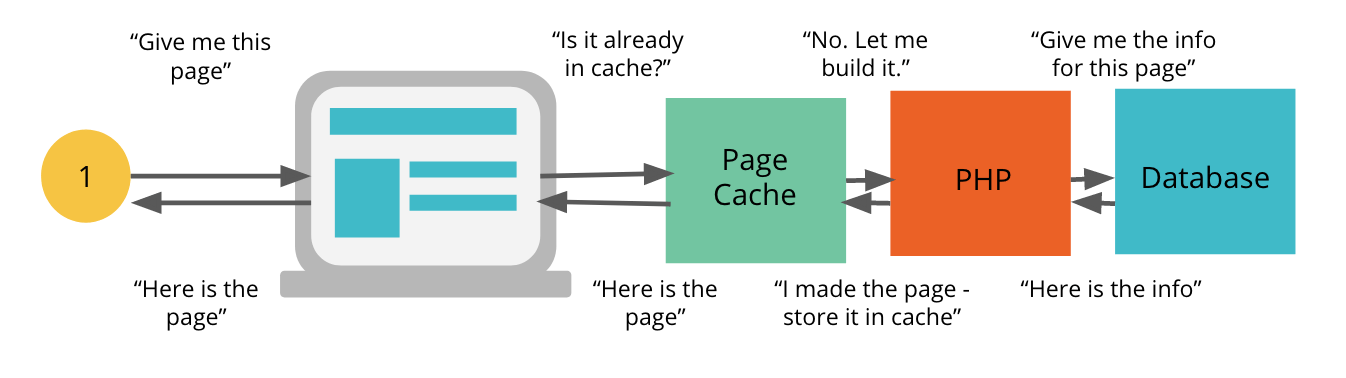
This saves the full HTML output of a page.
It’s the main tool used to speed up WordPress.
When someone visits:
They receive a stored HTML file instead of triggering WordPress to build the page again.
This is what most cache plugins do. It’s also what server-level caching like FastCGI cache does — but more efficiently.
If you only implement one type of caching, make it this one.
2. Object Cache
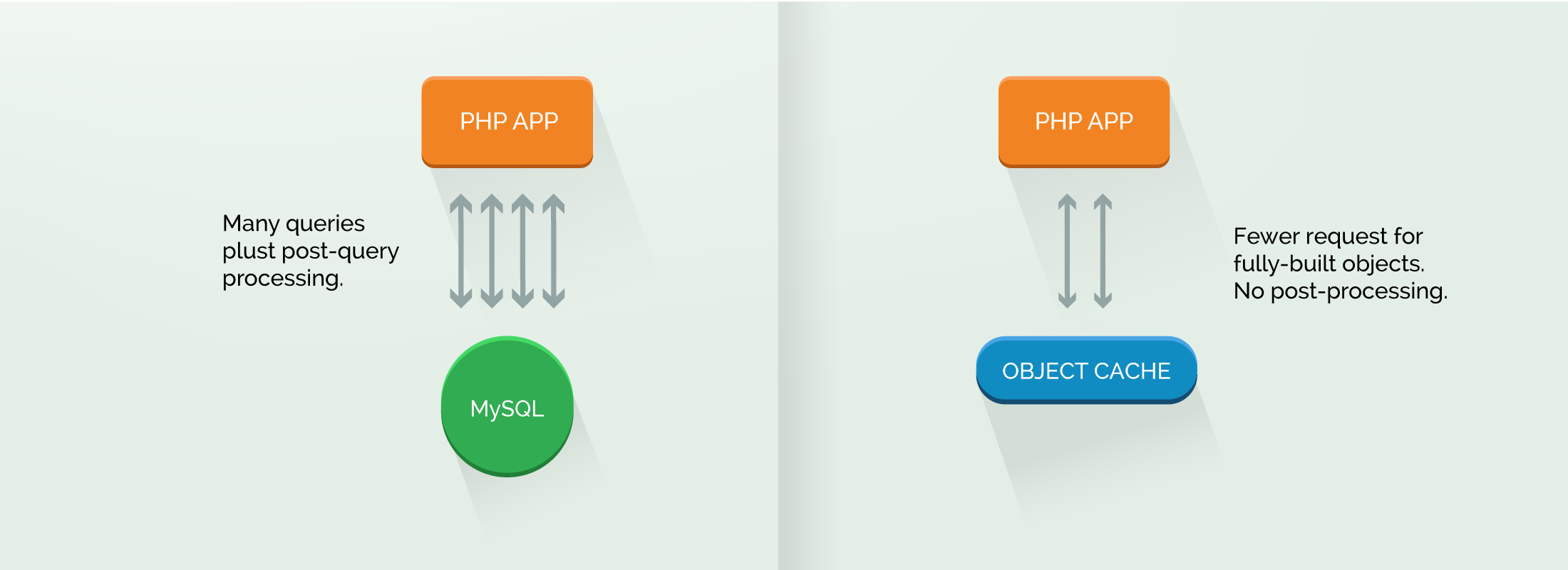
WordPress runs many database queries.
Object cache stores the results of those queries in memory (often using Redis or Memcached).
So instead of asking the database repeatedly, WordPress reuses stored results.
This is especially useful for:
-
WooCommerce stores
-
Membership sites
-
Logged-in users
-
Large content websites
Object cache supports page cache, but it doesn’t replace it.
3. Browser Cache
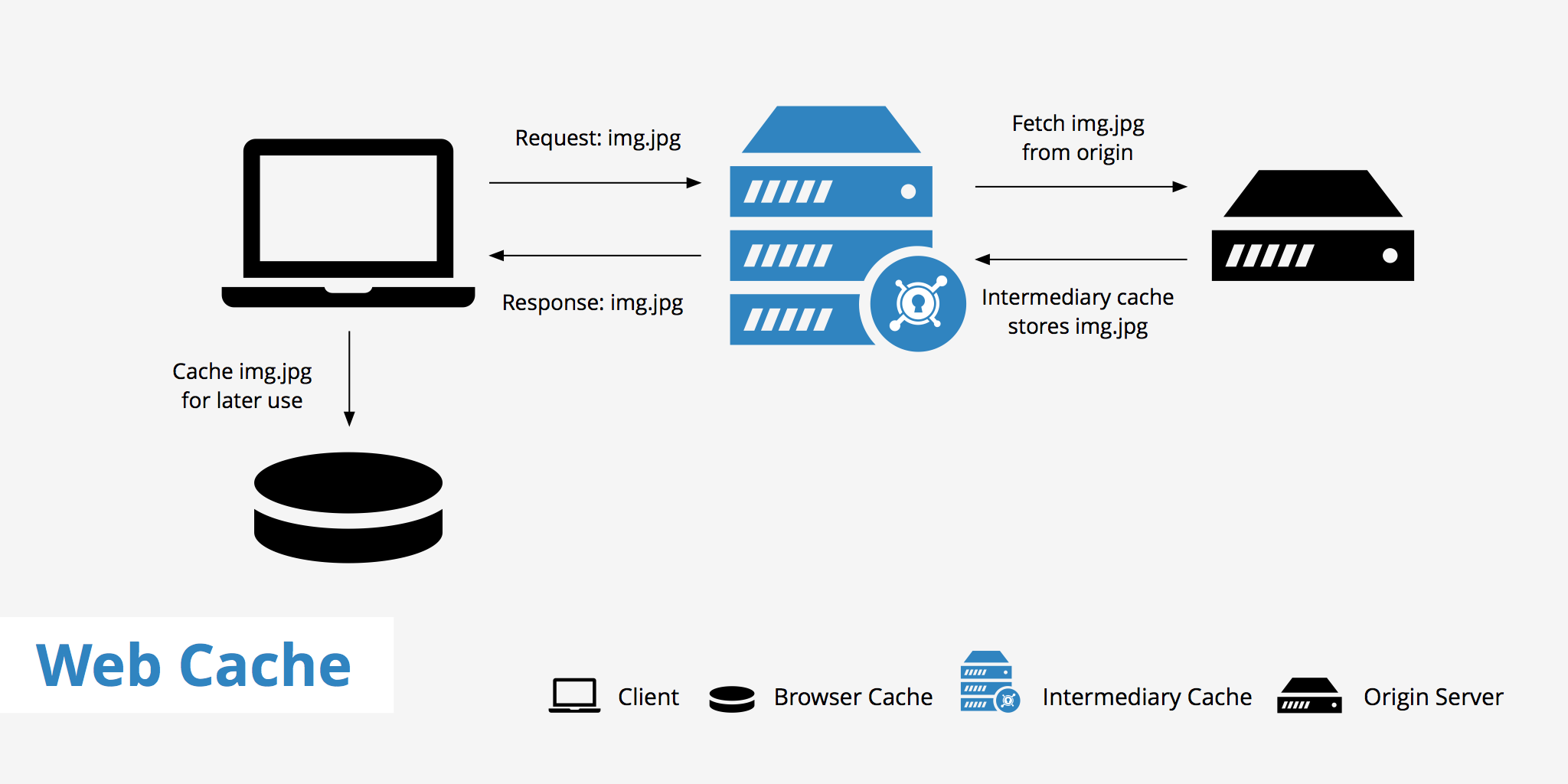
This happens on the visitor’s device.
When someone loads your site, their browser stores static files like:
-
Images
-
CSS
-
JavaScript
On future visits, those files don’t need to be downloaded again.
That improves repeat visit speed and reduces bandwidth usage.
4. CDN Cache
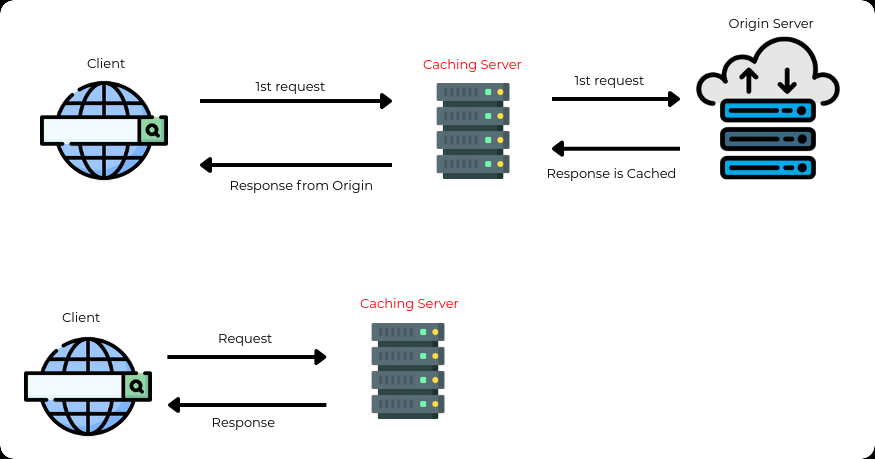
A CDN stores copies of your site on servers around the world.
Instead of loading everything from your origin server, visitors receive content from the closest location.
This reduces latency and improves global load times.
CDN caching is especially useful if your audience is international.
Why Caching Alone Isn’t Always Enough
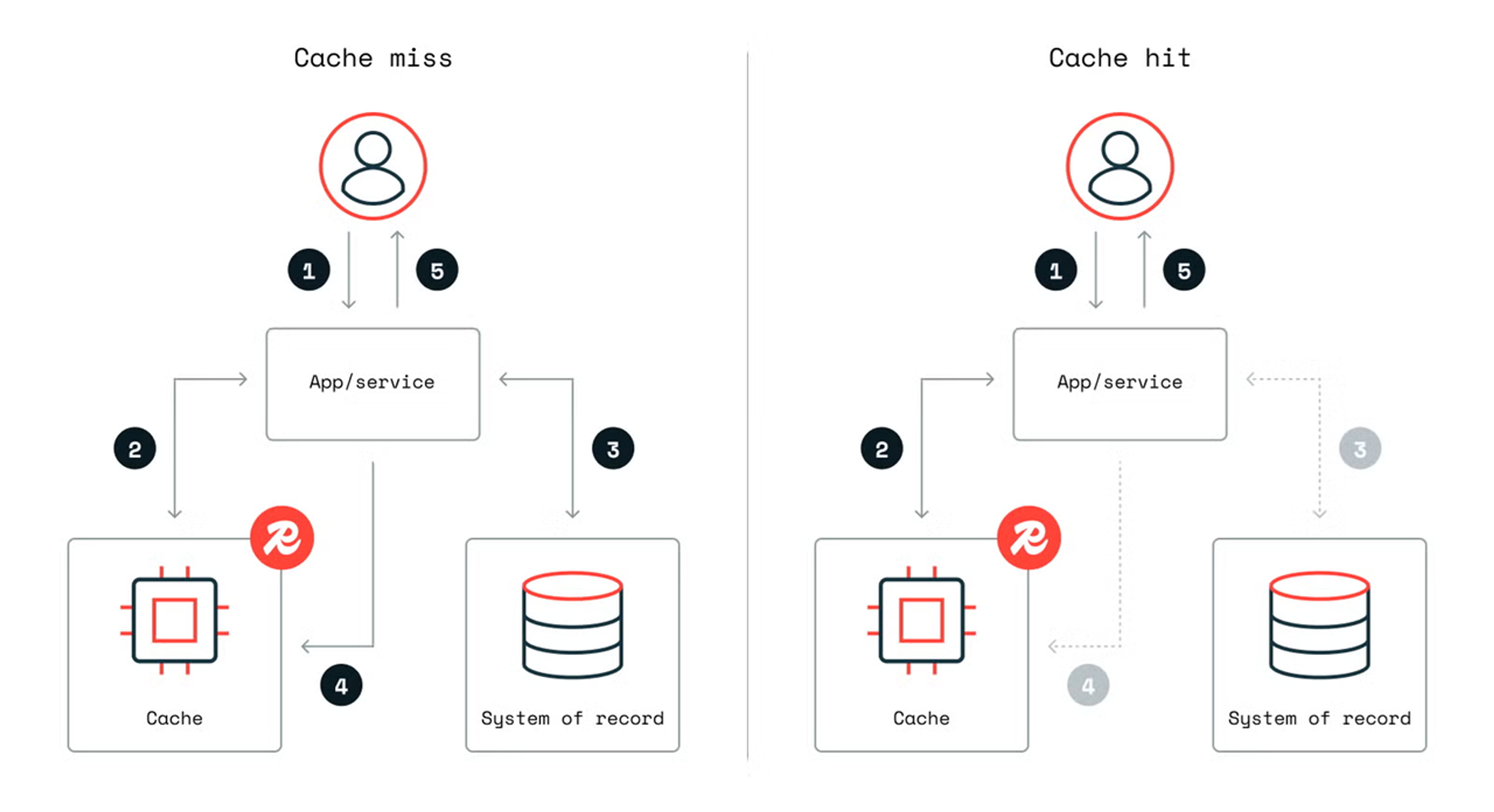
Caching is powerful.
But it’s not a magic button.
If your hosting is slow, your PHP version is outdated, or your theme is bloated, caching won’t solve everything.
You can cache a poorly optimized site — but it’s still poorly optimized underneath.
That’s why performance should be layered:
-
Good hosting
-
Proper PHP configuration
-
Clean database
-
Lightweight theme
-
Smart caching
When these work together, WordPress becomes fast and stable.
Common Caching Mistakes

Here’s where many beginners run into trouble.
They enable full-page caching but forget about:
-
Logged-in users
-
Admin pages
-
Cache purging
-
Dynamic content (like carts or dashboards)
If cache isn’t cleared when content updates, visitors may see outdated pages.
If login sessions are cached, users can experience errors.
Good caching setup is not just about storing pages — it’s about knowing when not to cache and when to refresh.
Understanding how WordPress caching works helps you avoid these problems.
A Real-World Example
Let’s say you publish a new blog post.
If your homepage is cached and the cache isn’t purged, it may still show the old version without the new post.
The server keeps serving the saved HTML.
Until the cache is cleared, nothing changes.
That’s why proper cache configuration matters as much as enabling it.
The Simple Way to Think About Caching
Don’t think of caching as a plugin feature.
Think of it as eliminating repeated work.
If your site receives 5,000 visits a day and rebuilds the same homepage 5,000 times, that’s unnecessary strain.
Caching builds it once.
Then reuses it thousands of times.
That’s efficiency.
And efficiency is speed.
Final Thoughts

WordPress is slow by default because it generates pages dynamically for every request.
Caching works by converting dynamic pages into static HTML and serving them instantly.
This reduces server load, improves response time, and helps lower TTFB.
But caching only works well when you understand what it’s doing.
Once you understand the logic, you stop randomly installing plugins.
You start building a proper performance foundation.
In the next part of this series, we’ll move from theory to practice and set up server-level page caching properly — the kind that makes a real, measurable difference.
Simple. Clean. Effective.