- Before We Start: One Important Rule
- Setup #1: Shared Hosting (Most Common Scenario)
- ✅ Page Cache (Plugin-Based)
- ✅ Browser Caching
- ⚠️ Object Cache?
- ✅ CDN (Optional but Helpful)
- Setup #2: VPS (More Control, More Responsibility)
- ✅ Server-Level Page Cache (Better Than Plugin Cache)
- ✅ Object Cache (Highly Recommended)
- ✅ CDN (Strongly Recommended)
- Setup #3: Dynamic / WooCommerce Sites
- What You Must Do
- What You Should Avoid (No Matter the Setup)
- So What’s the “Ultimate” Setup?
- What’s Next in This Series?
So far in this series:
-
You learned what caching is.
-
You understood the different caching layers.
Now it’s time for something practical.
No more theory.
In this article, we’re building real caching setups based on your hosting type.
Because the “best” caching setup depends entirely on where your site runs.
Before We Start: One Important Rule
More caching does not mean better performance.
A clean, structured stack always beats:
-
3 plugins doing the same thing
-
Overlapping server cache + plugin cache
-
Random settings enabled without understanding them
The goal is balance.
Setup #1: Shared Hosting (Most Common Scenario)
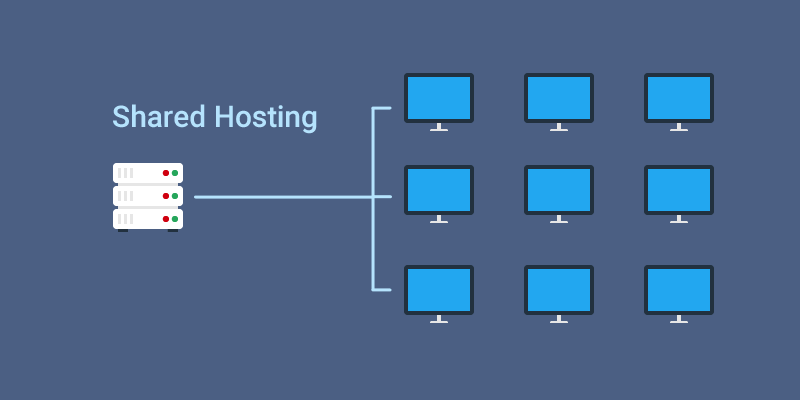
If you’re on shared hosting, keep things simple.
Most shared hosting environments:
-
Have limited server control
-
Share resources with other users
-
Don’t allow advanced server caching tweaks
So your focus should be:
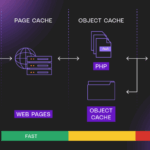
✅ Page Cache (Plugin-Based)
This is your biggest win.
Use ONE solid caching plugin that handles:
-
Page caching
-
Browser caching
-
Basic minification
Avoid installing multiple optimization plugins that overlap.
✅ Browser Caching
Usually handled inside your caching plugin.
You don’t need to manually edit .htaccess unless you know what you’re doing.
⚠️ Object Cache?
Only if:
-
You run WooCommerce
-
You have logged-in users
-
Your hosting supports Redis or Memcached
Otherwise, skip it.
Adding object cache on weak shared hosting can sometimes slow things down instead of speeding them up.
✅ CDN (Optional but Helpful)
If your audience is international, adding a CDN later is a smart move.
But don’t start with it.
Fix your base performance first.
🔹 Recommended Shared Hosting Stack
-
Page Cache (via plugin)
-
Browser Cache
-
Optional CDN
That’s it.
Keep it clean.
Setup #2: VPS (More Control, More Responsibility)
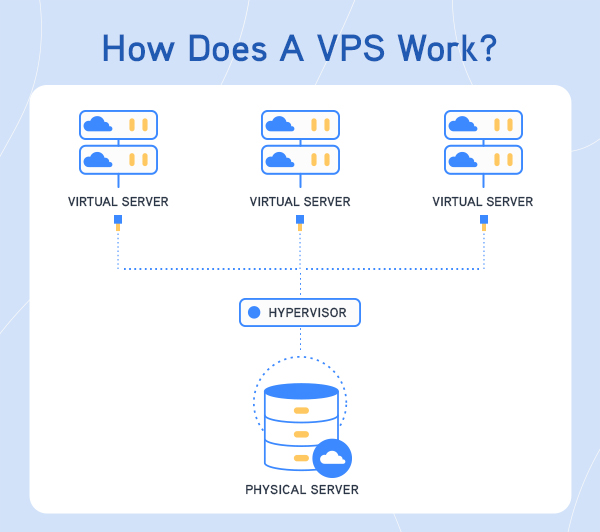
If you’re on a VPS, things change.
You now have access to:
-
Server-level caching
-
Memory caching systems
-
More configuration power
But power can create complexity.
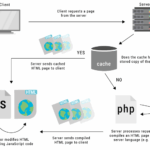
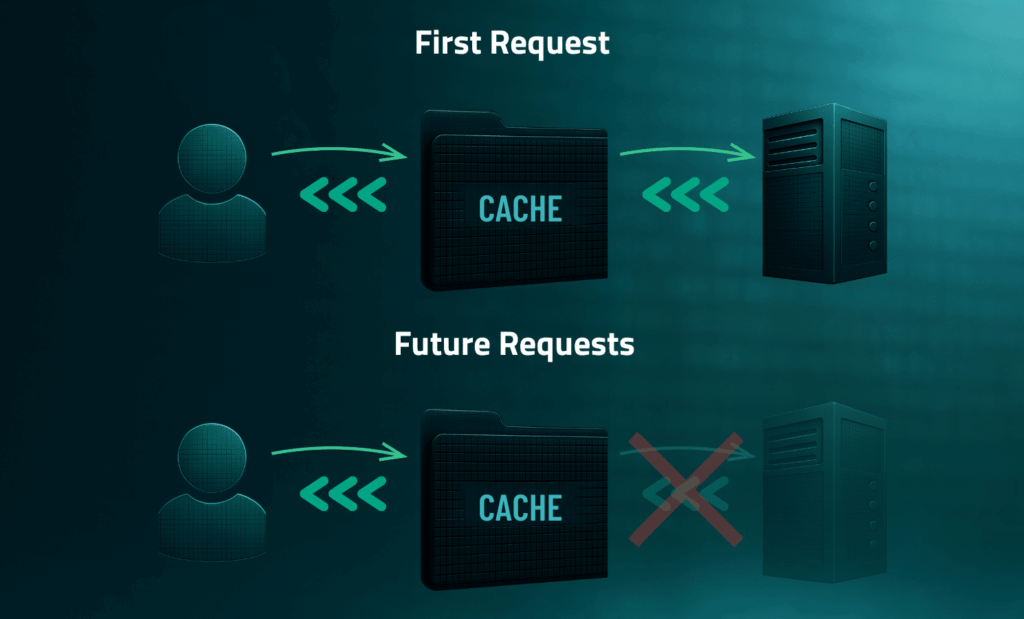
✅ Server-Level Page Cache (Better Than Plugin Cache)
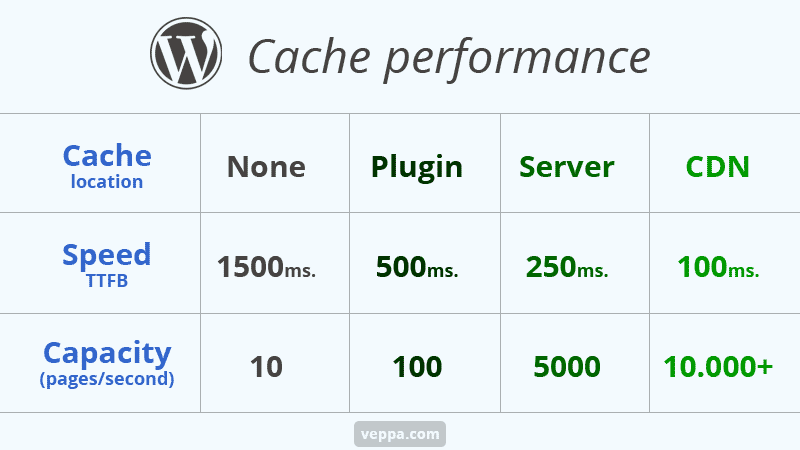
On VPS, server-level caching (like FastCGI cache) is usually more efficient than plugin page caching.
Why?
Because it works before WordPress even loads.
That means:
-
Lower CPU usage
-
Faster response times
-
Better scalability
If you use server-level page caching, you usually don’t need plugin-based page caching.
✅ Object Cache (Highly Recommended)
For VPS setups, especially if:
-
You run WooCommerce
-
You have heavy database queries
-
You run membership systems
Object caching (like Redis) becomes very valuable.
It reduces database load significantly.
✅ CDN (Strongly Recommended)
At this stage, a CDN becomes more important.
Especially if:
-
Your audience is global
-
Your site serves large media files
-
You want extra protection against traffic spikes
🔹 Recommended VPS Stack
-
Server-Level Page Cache
-
Object Cache (Redis)
-
CDN
-
Minimal optimization plugin (no duplicate caching)
Clean. Layered. Efficient.
Setup #3: Dynamic / WooCommerce Sites
This is where many caching setups break.
Ecommerce and membership sites are dynamic.
They include:
-
Cart sessions
-
Checkout pages
-
User dashboards
-
Personalized content
If these pages are cached incorrectly, things break.
What You Must Do
-
Exclude cart, checkout, and account pages from caching
-
Enable object cache (if possible)
-
Avoid aggressive full-page caching for logged-in users
Here, object caching often becomes more important than aggressive page caching.
Because performance problems usually come from database load — not static content.
What You Should Avoid (No Matter the Setup)
❌ Two page caching systems running together
❌ Installing 3 “speed plugins” at once
❌ Turning on every optimization toggle blindly
❌ Caching dynamic pages
❌ Optimizing before measuring performance
Always test changes one at a time.
So What’s the “Ultimate” Setup?
There is no single universal setup.
The ultimate setup is:
The cleanest stack that matches your hosting environment.
Shared hosting → Keep it simple.
VPS → Use server power intelligently.
Dynamic sites → Focus on database efficiency.
That’s it.
What’s Next in This Series?
In the next article, we’ll go deeper into configuration.
Instead of theory, we’ll look at:
-
Exact settings to enable
-
What to disable
-
Common misconfigurations
-
Real examples
Because knowing what to use is one thing.
Configuring it correctly is another.