- Why Your Cache Plugin Isn’t the Whole Story
- The 4 Caching Layers (In Simple Terms)
- 1. Browser Caching — Let the Visitor Remember
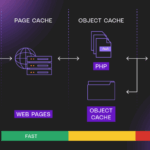
- 2. Page Caching — The Big Performance Booster
- 3. Object Caching — Reducing Database Repetition
- 4. CDN Caching — Bringing Your Site Closer to Visitors
- Here’s Where People Get Confused
- A Common Beginner Mistake
- Not Every Page Should Be Cached
- The Real Takeaway
In the first article of this series, we talked about what caching is and why it makes WordPress faster.
Now let’s clear up something important.
Most beginners think caching is just:
“Install a plugin. Done.”
I used to think the same.
But caching isn’t a button. It’s a structure.
And once you understand that structure, everything starts to make sense.
Why Your Cache Plugin Isn’t the Whole Story
When someone visits your WordPress site, a lot happens behind the scenes:
-
PHP runs
-
WordPress loads
-
The database gets queried
-
The page is assembled
-
Then it’s finally sent to the browser
That entire process can take time — especially on shared hosting.
Caching helps by reducing how often that full process needs to happen.
But here’s the part most people don’t realize:
Caching doesn’t happen in just one place.
It happens in layers.
Let’s break them down in plain English.
The 4 Caching Layers (In Simple Terms)
Think of your website like a small café.
Every time someone orders coffee, the barista makes it from scratch.
That works — until 50 people walk in at once.
Caching is basically preparing popular drinks ahead of time.
But preparation can happen at different stages.
1. Browser Caching — Let the Visitor Remember
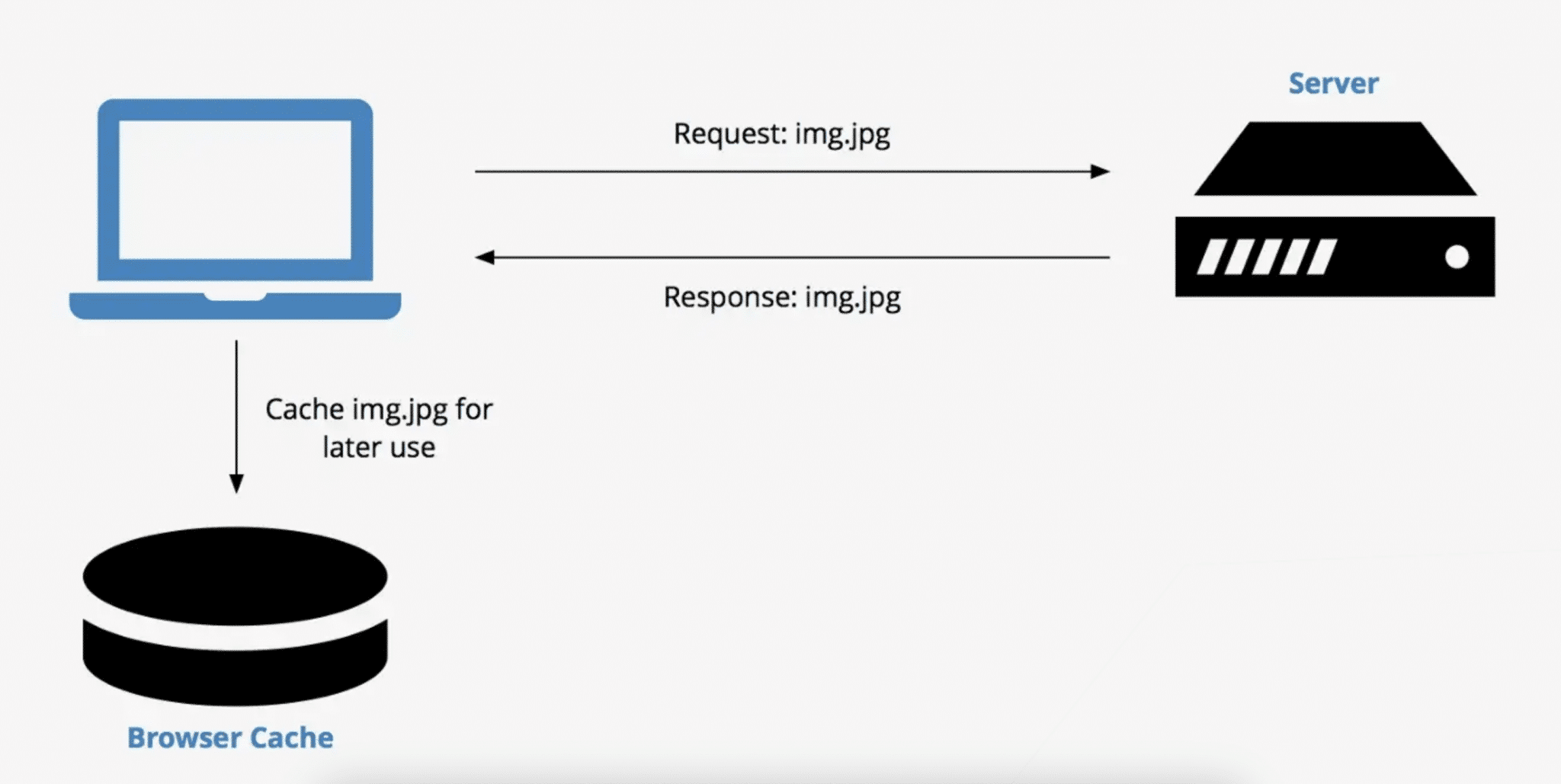
This one happens on the visitor’s side.
When someone visits your website, their browser downloads things like:
-
Images
-
CSS files
-
JavaScript
-
Fonts
Browser caching tells their browser:
“You already downloaded this. Keep it for later.”
So when they visit another page, or come back tomorrow, those files don’t need to be downloaded again.
It won’t dramatically speed up first-time visitors. But repeat visits feel much faster.
It’s simple. And it’s very effective.
2. Page Caching — The Big Performance Booster
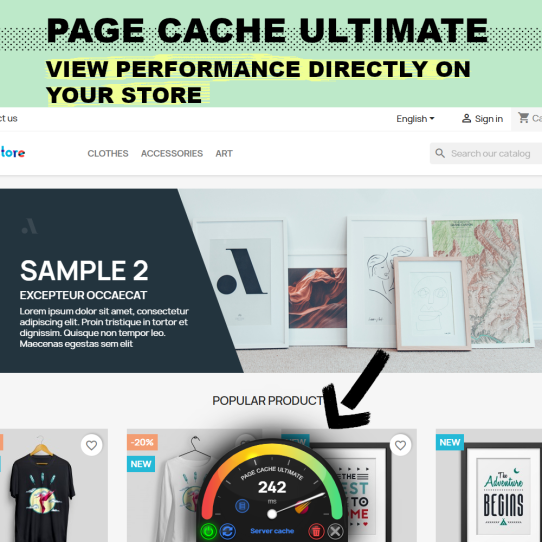
This is the one that changes everything.
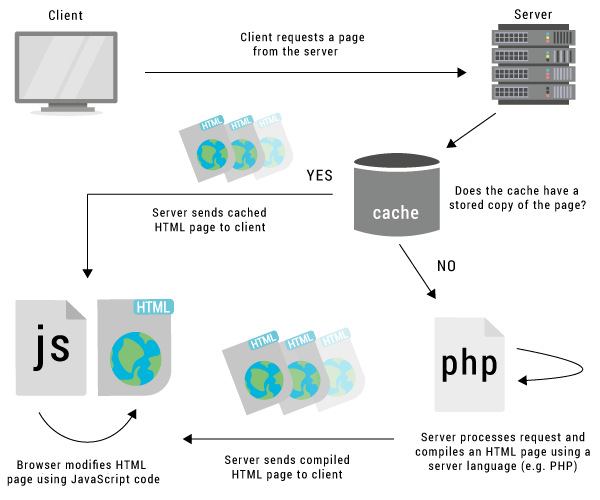
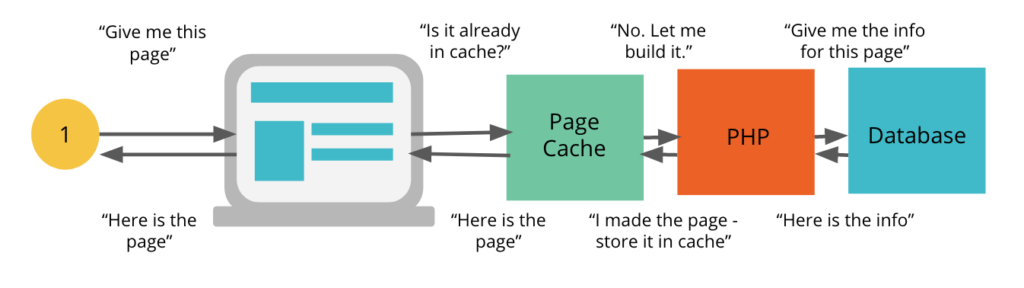
Normally, WordPress builds a page dynamically every single time someone visits.
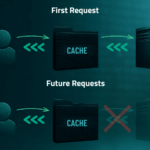
With page caching, instead of rebuilding the page over and over, WordPress saves a ready-made HTML version.
So the next visitor?
They just get the finished version immediately.
No heavy database work.
No repeated processing.
For most small to medium websites, this is where the biggest speed improvement comes from.
If you only understand one layer, make it this one.
3. Object Caching — Reducing Database Repetition
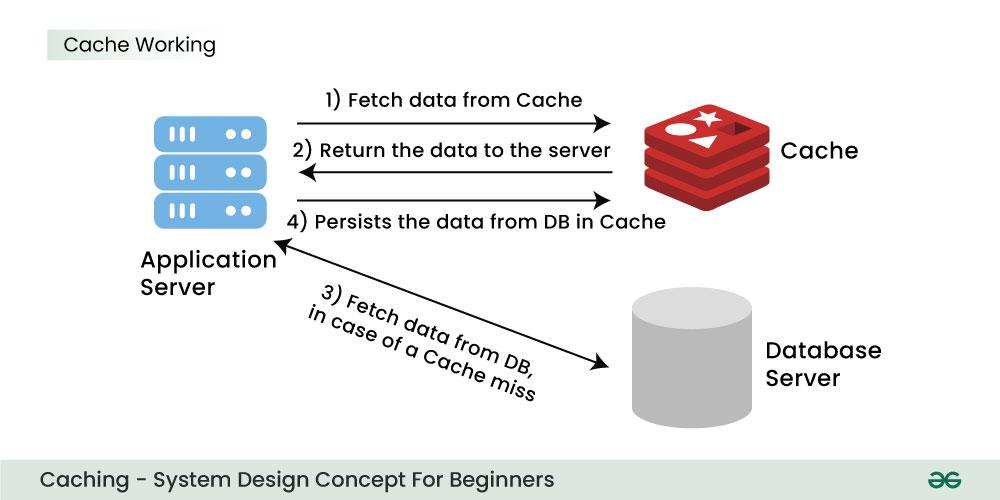
Now we go slightly deeper — but stay with me.
WordPress constantly asks the database for information:
-
Post content
-
Settings
-
User data
-
Menu structure
If the same data gets requested repeatedly, object caching stores it in memory.
Instead of asking the database 20 times, it asks once and reuses the answer.
This becomes important for:
-
WooCommerce stores
-
Membership sites
-
Sites with logged-in users
-
Bigger content websites
If you run a simple blog, you may never need to think about it.
If you run something dynamic, it can make a big difference.
4. CDN Caching — Bringing Your Site Closer to Visitors
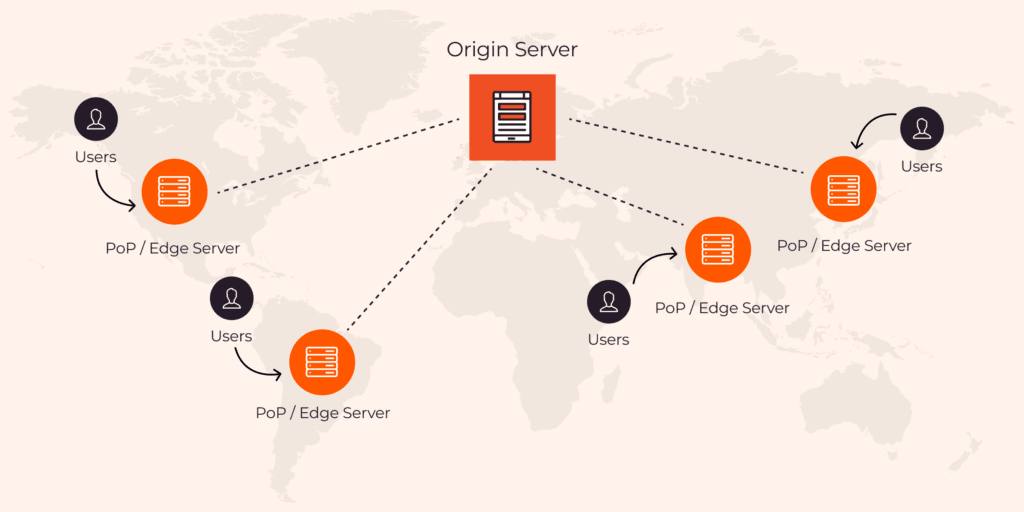
A CDN stores copies of your website across different global locations.
If your server is in Singapore and someone visits from Europe, that’s physical distance.
A CDN reduces that distance.
Instead of loading everything from your main server, visitors load content from a nearby location.
Less distance = less delay.
You don’t always need a CDN when you’re starting out.
But as traffic grows — especially international traffic — it becomes more valuable.
Here’s Where People Get Confused
These layers are not competing with each other.
They stack.
A properly optimized site might use:
-
Browser caching
-
Page caching
-
Object caching
-
A CDN
All working together.
More importantly:
Each layer solves a different problem.
If you don’t understand that, you might install two systems doing the same job — and then wonder why things break.
A Common Beginner Mistake
This happens a lot.
Your hosting provider already has server-level page caching.
You install a plugin that also does page caching.
Now you have two systems caching the same thing.
Suddenly:
-
Changes don’t show up
-
Pages won’t refresh
-
WooCommerce cart acts weird
-
Logged-in users see strange behavior
It’s not that caching is bad.
It’s that structure matters.
Not Every Page Should Be Cached
This is important.
Some pages should always stay dynamic:
-
Cart page
-
Checkout page
-
Account dashboard
-
Admin area
If those pages are cached, users might see old session data or someone else’s information.
Good caching setups automatically exclude these.
But now you understand why that’s necessary.
The Real Takeaway
Caching isn’t about installing more plugins.
It’s about understanding where optimization happens.
Once you see the layers clearly, you stop guessing.
You stop stacking random tools.
You start building intentionally.
And that’s when your site becomes predictably fast — not just “sometimes fast.”
In the next article, we’ll move from understanding to action.
We’ll build real caching setups for:
-
Shared hosting
-
VPS
-
Dynamic websites
So you’ll know exactly what to use — and what to skip.